# Working With Templates
For PRO plans where creating sub-organizations is possible, creating, copying, editing or deleting templates is only available in the root organization. These actions are not possible in a sub-organization.
## Create a Template
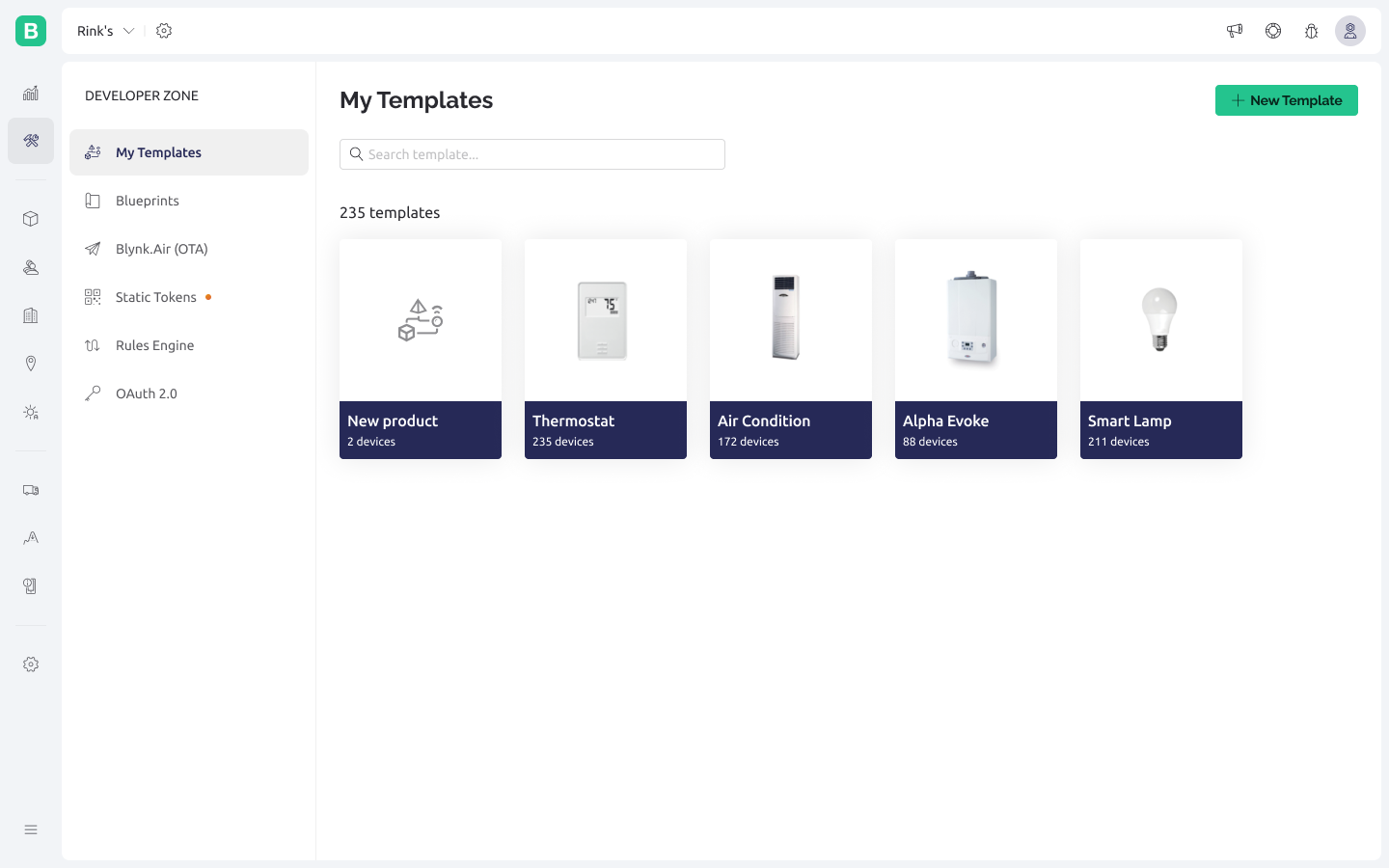
1. Clicking on Developer Zone you immediately get to the Templates section
2. Click **New Template** button to start configuring the Template
3. Provide basic Template info in the modal window opened, click Done
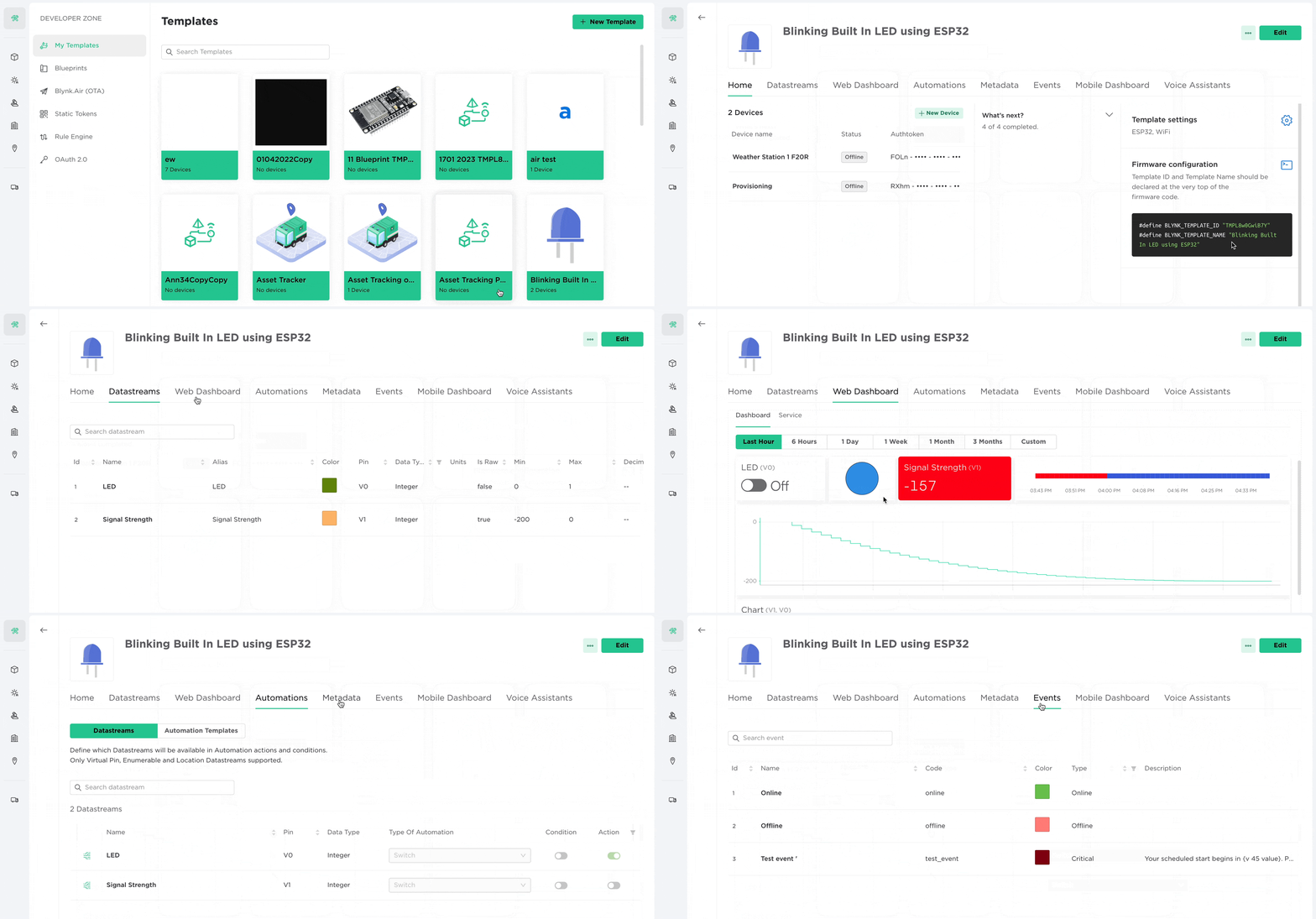
4. After that go through the tabs [Info](https://docs.blynk.io/en/~/revisions/ynmC8lZ6FPocTYWigjcO/blynk.console/templates/info), [Datastreams](https://docs.blynk.io/en/~/revisions/ynmC8lZ6FPocTYWigjcO/blynk.console/templates/datastreams), [Metadata](https://docs.blynk.io/en/~/revisions/ynmC8lZ6FPocTYWigjcO/blynk.console/templates/metadata), [Events ](https://docs.blynk.io/en/~/revisions/ynmC8lZ6FPocTYWigjcO/blynk.console/templates/events)and [Web Dashboard ](https://docs.blynk.io/en/~/revisions/ynmC8lZ6FPocTYWigjcO/blynk.console/templates/dashboard)to set up all components of the template
5. Click **Save** once you've finished the setup.
## Edit a Template
Click on a template tile to view the Template. Click on Edit button to be able to make any changes.\
You can also Duplicate or Delete the template using the dropdown menu.
## Delete a Template
{% hint style="warning" %}
This is a critical action that can affect how your devices and application work
{% endhint %}
1. Open the Template
2. In the drop-down menu select Delete option
3. A confirmation dialogue will appear
4. Templates without devices require simple confirmation
5. If there are devices created with this template you will have to type **in DELETE** (in caps) in the confirmation field and mark the checkbox to confirm that you understand the severity of this action
6. Click **DELETE**