> For the complete documentation index, see [llms.txt](https://docs.blynk.io/en/llms.txt). Markdown versions of documentation pages are available by appending `.md` to page URLs; this page is available as [Markdown](https://docs.blynk.io/en/blynk.console/dashboards/device-widgets.md).
# Device Widgets
Each widget has its own settings, similar to those on a [Device Dashboard](/en/blynk.console/templates/dashboard.md) but adjusted slightly to work correctly with multiple devices.
Device widgets can be used to perform management actions such as turning devices on or off or updating values. They can also display data from multiple devices and visualize them on a map or floor plan.
Available Device widgets:
* [Switch](/en/blynk.console/dashboards/device-widgets/controls.md#switch)
* [Slider](/en/blynk.console/dashboards/device-widgets/controls.md#slider)
* [Label](/en/blynk.console/dashboards/device-widgets/label.md)
* [Device Table](/en/blynk.console/dashboards/device-widgets/device-table.md)
* [Chart: Metrics over time](/en/blynk.console/dashboards/device-widgets/charts.md#metrics-over-time-agg)
* [Chart: Metrics by device](/en/blynk.console/dashboards/device-widgets/charts.md#metric-by-device)
* [Image Map](/en/blynk.console/dashboards/device-widgets/image-map.md)
* [Geomap](/en/blynk.console/dashboards/device-widgets/geomap.md)
Device Metrics Widgets
### How to configure
Device widgets are designed to display or interact with datastream values, offering insightful data visualization and control.
#### Datastreams
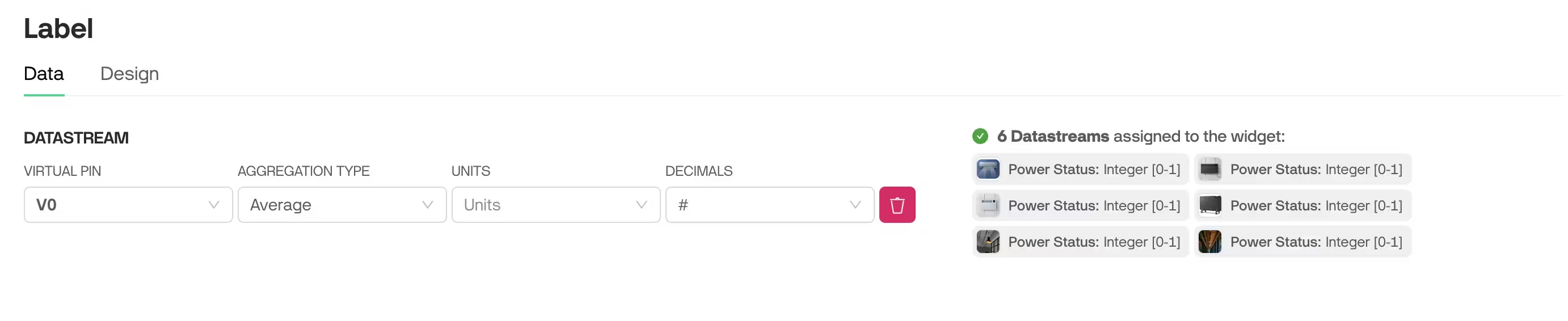
All device metrics widgets require an assigned datastream to function. To streamline this process and enhance your experience, we’ve developed a **Virtual Pin** approach for datastream selection.
Instead of manually mapping multiple datastreams one by one, you only need to select a single Virtual Pin. All datastreams associated with that Virtual Pin will automatically be assigned to the widget, saving time and reducing complexity.
This approach simplifies widget setup and ensures a seamless connection to the data you need.
{% hint style="warning" %}
Before creating a dashboard, standardize the datastreams across the templates included in it so that the corresponding Virtual Pins contain the same data. For example, V1 represents Brightness across all templates.
{% endhint %}
E.g. You have launched a new product model. And you want to add the data from it to one of your existing dashboards. If you have datastreams standardized the same way as for the existing products, you just need to add the new product (template) to the dashboard data source and all of your widgets will be updated immediately.
#### Data Types
Current widgets support only Integer and Double data types. Datastreams of any other type will be ignored and excluded from calculations.
{% hint style="success" %}
For example, if you set the V1 Pin to display the Average value in a Label widget, and V1 uses the Integer type in four templates but String type in two, the calculation will only include the four Integer datastreams. The two String datastreams will be ignored, regardless of the data selection.
{% endhint %}
#### How to select datastreams
To select datastreams, choose a row from the dropdown. The dropdown displays all datastreams, grouped by Virtual Pin, based on the templates included in the dashboard's data source.
Select datastreams grouped by Virtual Pin
Once you select the row, assigned datastreams preview appears on the right, displaying the datastreams associated with the selected Virtual Pin across all templates included in the dashboard. This preview helps you quickly assess the data and confirm that the correct datastreams are connected for each template.
Assigned datastreams preview
#### Aggregation types
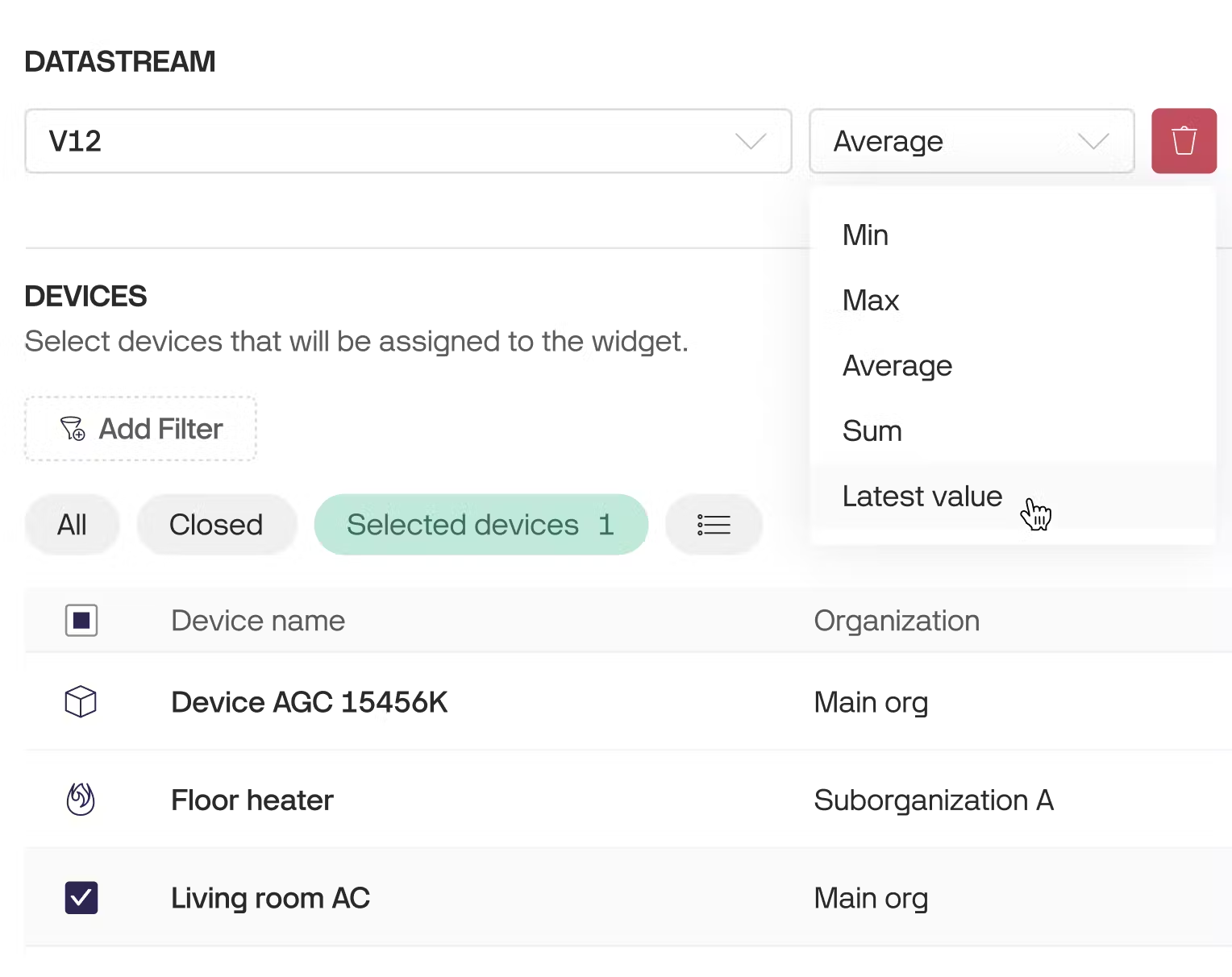
Blynk supports 4 aggregation types across all widgets: Average, Min, Max, and Sum.
Also the **Label widget** supports additional aggregation type - **Latest value**.
{% hint style="info" %}
**Latest value** aggregation type is available only if **1 device** is selected and updates its latest value once in a 10 sec.
{% endhint %}
Aggregation types
#### Decimals
Determines the number of decimal places displayed for numerical values in the widget (e.g., #.## for 25.35).
#### Units
Specifies the measurement unit to display alongside values (e.g., °C, %, kWh) for clarity and context.
{% hint style="warning" %}
Note that this is purely a label and does not involve any unit conversion of the values.
{% endhint %}
---
# Agent Instructions
This documentation is published with GitBook. GitBook is the documentation platform designed so that both humans and AI agents can read, navigate, and reason over technical content effectively. Learn more at gitbook.com.
## Querying This Documentation
If you need additional information that is not directly available in this page, you can query the documentation dynamically by asking a question.
Perform an HTTP GET request on the current page URL with the `ask` query parameter, and the optional `goal` query parameter:
```
GET https://docs.blynk.io/en/blynk.console/dashboards/device-widgets.md?ask=&goal=
```
`ask` is the immediate question: it should be specific, self-contained, and written in natural language.
`goal` is optional and describes the broader end goal you are ultimately trying to accomplish on behalf of the user. GitBook uses it to tailor the answer towards what is most useful for that goal.
The response will contain a direct answer to the question and relevant excerpts and sources from the documentation.
Use this mechanism when the answer is not explicitly present in the current page, you need clarification or additional context, or you want to retrieve related documentation sections.